Key takeaways
Your profile now decides who gets recommended your account. LinkedIn's engineers said in August 2026 that follow suggestions match creators by topic, reading fields like headline, title and skills.
Pick one goal before you edit anything. A job seeker, a founder, a salesperson and a creator need different headlines, Featured items and main buttons.
Creator mode is gone. LinkedIn removed the toggle and profile hashtags in 2024, so your topics have to live in your headline, About and skills, and Follow is a setting you turn on.
Write for search without stuffing. LinkedIn says standard job titles and skills help people find you, and that keyword stuffing can trip its spam detection.
Your profile and your posts should say the same thing. Visitors arrive from a post, so the topics and voice in your headline and About should match what they just read. Measure the result with profile views and search appearances.
LinkedIn profile optimization means making every section of your profile say the same two or three things: what you do, who it's for and what you post about. Pick one goal first, then work from the top down in 12 steps: photo, banner, headline, About, Featured, experience, skills, recommendations, other sections, custom URL, Follow settings and Open to Work. In 2026 this matters beyond first impressions, because LinkedIn's follow suggestions read your headline, title and skills to decide who sees your account.
We make VoiceMoat, an AI social media tool for LinkedIn and Twitter, and we cover what it does near the end. Everything in this guide works without it.
In this guide:
Why your profile matters more in 2026
The checklist at a glance
Before you edit: pick one goal and three topics
How LinkedIn search and follow suggestions read your profile
The 12 steps, from photo to Open to Work
How your profile shows on a phone and in the feed
Set it up for your goal
A full before-and-after profile
Your profile is the landing page for your posts
How to check and measure it
Using ChatGPT or Claude to optimize your profile
Mistakes that undo the work, and the fixes
How VoiceMoat helps
FAQ
Why your profile matters more in 2026
Most guides treat the profile as a CV for recruiters. That's still one reader, but there are now three.
The recruiter or buyer who searches. They type a job title or a skill into LinkedIn search and scan the results. Your headline is most of what they see before clicking.
The visitor from a post. Someone saw your post or comment, clicked your name, and is deciding in seconds whether to follow, connect or leave.
LinkedIn's follow suggestions. On 24 August 2026, LinkedIn's engineering team said its "who to follow" system matches creators "by topical relevance rather than popularity", and relies on "profile fields like headline, title, and skills".
So a vague headline costs you three times: with the searcher, with the person who clicked, and with the system choosing who to show you to. LinkedIn didn't tell creators what to write, so the rest of this guide is our reading of what that means in practice, with LinkedIn's own rule cited wherever one exists.
The checklist at a glance
Step | Section | What to do | LinkedIn's own rule or number |
|---|---|---|---|
1 | Photo | A clear, recent photo of your face | Members with a photo get up to 2x more profile views |
2 | Banner | One line on what you do, clear of the photo | 1584 x 396 pixels recommended, JPG or PNG under 8 MB |
3 | Headline | What you do, for whom, and your topics | Read by follow suggestions |
4 | About | Who you help, proof, what you post about | One or two paragraphs |
5 | Featured | Two or three items that serve your goal | Posts, articles, links and media |
6 | Experience | Outcomes, not duties, with standard titles | Keep it aligned with your current goals |
7 | Skills | The ones that match your topics, first | Up to 100. None means no Skills section |
8 | Recommendations | Ask the people who saw your best work | One request per connection at a time, no total limit |
9 | Other sections | Education, certifications, a second language if you need it | LinkedIn doesn't translate a second-language profile for you |
10 | Custom URL | Your name, cleanly | 3 to 100 characters, 5 changes in 6 months |
11 | Follow button | Turn on "Make follow primary" if you want an audience | Settings & Privacy, Visibility, Followers |
12 | Open to Work | Choose who can see it | All members adds a photo frame; recruiters only doesn't |

Print it or keep it open while you edit.
Before you edit: pick one goal and three topics
Every ranking guide jumps straight to the photo. The more useful first step takes five minutes and decides what you write in every other section.
1. Pick one main goal. Be honest about what you want from LinkedIn in the next six months:
Get hired: recruiters and hiring managers should find you and message you.
Win clients or customers: buyers should understand what you sell and how to start.
Build an audience: strangers who like your posts should follow you.
Recruit or raise: candidates or investors should trust you and your company.
You can serve a second goal lightly, but one has to lead. A profile that tries to get you hired, sell a service and grow a newsletter at once does none of them well.
2. Pick two or three topics. These are the subjects you want to be known for, in the words your audience would type. "B2B onboarding" beats "customer experience excellence". If you already post, look at your last 20 posts and list what they're actually about. If the list surprises you, either your topics or your posts need to change.
3. Write one sentence. "I help [who] with [what], and I post about [topic one], [topic two] and [topic three]." An invented example: "I help B2B SaaS teams fix onboarding, and I post about activation, pricing pages and user research."
That sentence is the brief for the rest of the profile. Your headline compresses it, your About expands it, your skills list its keywords, and your Featured items prove it.
How LinkedIn search and follow suggestions read your profile
Two systems read your profile, and LinkedIn has published a little about each.
People search. LinkedIn's help page on where you appear in search says it "can't guarantee a particular order" and that ranking depends on "relevancy to the searcher". The same profile can be on page two for one person and page five for another. What LinkedIn does say helps:
A complete profile, so you can be found by current and past positions and schools.
Skills, which it calls "among the most common queries performed by recruiters and hiring managers".
Standard job titles. In LinkedIn's words, they "may be boring, but they are what other members search for".
More connections, because a closer connection to the searcher (second degree rather than third) helps you appear.

Which fields LinkedIn has said it reads. Weights aren't published.
Follow suggestions. As above, the August 2026 engineering post says the system reads headline, title and skills and matches by topic.
What not to do. LinkedIn's search relevance page tells members to avoid "keyword stuffing", and warns that an overly optimized profile "may be impacted by spam detection systems". The other page says LinkedIn "may take action on accounts that engage in abusive search engine optimization".
In practice:
Put your main keyword in three places: headline, current job title (if it's true) and top skills.
Use it naturally once or twice in About, not in a pasted block of 30 terms.
Use the title people search for, and add your creative title after it if you like: "Product Designer (we call it Experience Lead)" rather than only "Experience Lead".
Don't repeat a keyword in every line of every role. It reads badly to people and LinkedIn has said it may read as spam.
LinkedIn hasn't published how much any field weighs, so treat anyone who promises "page one in LinkedIn search" with caution.
The 12 steps, from photo to Open to Work
Each step below gives you what the section does, LinkedIn's rule, what good looks like and, where it helps, a before-and-after. All examples are invented.
1. Profile photo
LinkedIn says members with a profile photo get up to 2x more profile views. Its photo guidelines say the photo must reflect your likeness. Illustrations and caricatures of you are allowed. Photos made only of a logo, a landscape, an animal, words, a flag, a childhood photo or someone else's likeness are not.
Face filling most of the frame, looking at the camera, in decent light.
Recent. People should recognize you on a video call.
Plain background. It crops to a small circle in the feed, where most people will see it.
Dressed the way you'd meet your audience. A consultant to banks and a designer for gaming studios shouldn't look the same.
To edit it, open your profile and click your photo, or use the pencil icon on your intro. To crop and brighten a photo without uploading it anywhere, use our free LinkedIn photo editor.

Where the top-card fields live. Mockup, not a screenshot.
2. Banner
LinkedIn's help page on the cover image recommends 1584 x 396 pixels, as a JPG or PNG under 8 MB. Your photo covers part of it on the left, so keep text to the center or right.
One line on what you do or what you post about, in large type.
Proof if you have it: a book, a podcast name, a product, a logo strip of clients you're allowed to name.
One next step if it fits your goal: a newsletter name or a website, not a list of five.
Skip the default. An empty banner reads like an unfinished profile.
Before (invented) | After (invented) |
|---|---|
A stock photo of a city skyline | "Onboarding and activation for B2B SaaS. Weekly teardown every Tuesday." |
Company logo with no words | "We build payroll for 10 to 200 person teams. Hiring engineers in Lisbon." |
Our free LinkedIn banner maker marks where the photo sits, so your text stays visible. For other image sizes, see our LinkedIn image size guide.
3. Headline
The headline travels under your name on every post and comment, so it's read far more often than the profile itself. It's also one of the fields both search and follow suggestions read.
Say what you do, who it's for and what you post about.
Lead with the words people search for, usually your role or your main topic.
Skip the bare job title. "Senior Manager at Company" names your employer, not your topics.
Skip buzzwords and rows of pipes. "Visionary | Leader | Innovator" gives nobody anything to match.
Before (invented) | After (invented) | What changed | ||
|---|---|---|---|---|
Senior Manager at Northwind | Customer success lead for B2B SaaS. Posts on onboarding and churn. | Role, audience and topics instead of an employer | ||
Passionate marketer \ | Growth \ | Storyteller | B2B content marketer. I turn sales calls into posts and case studies. | A specific job and a result in place of adjectives |
Looking for new opportunities | Data analyst (SQL, Python, Looker). Open to analytics roles in London. | Searchable skills and a target role |
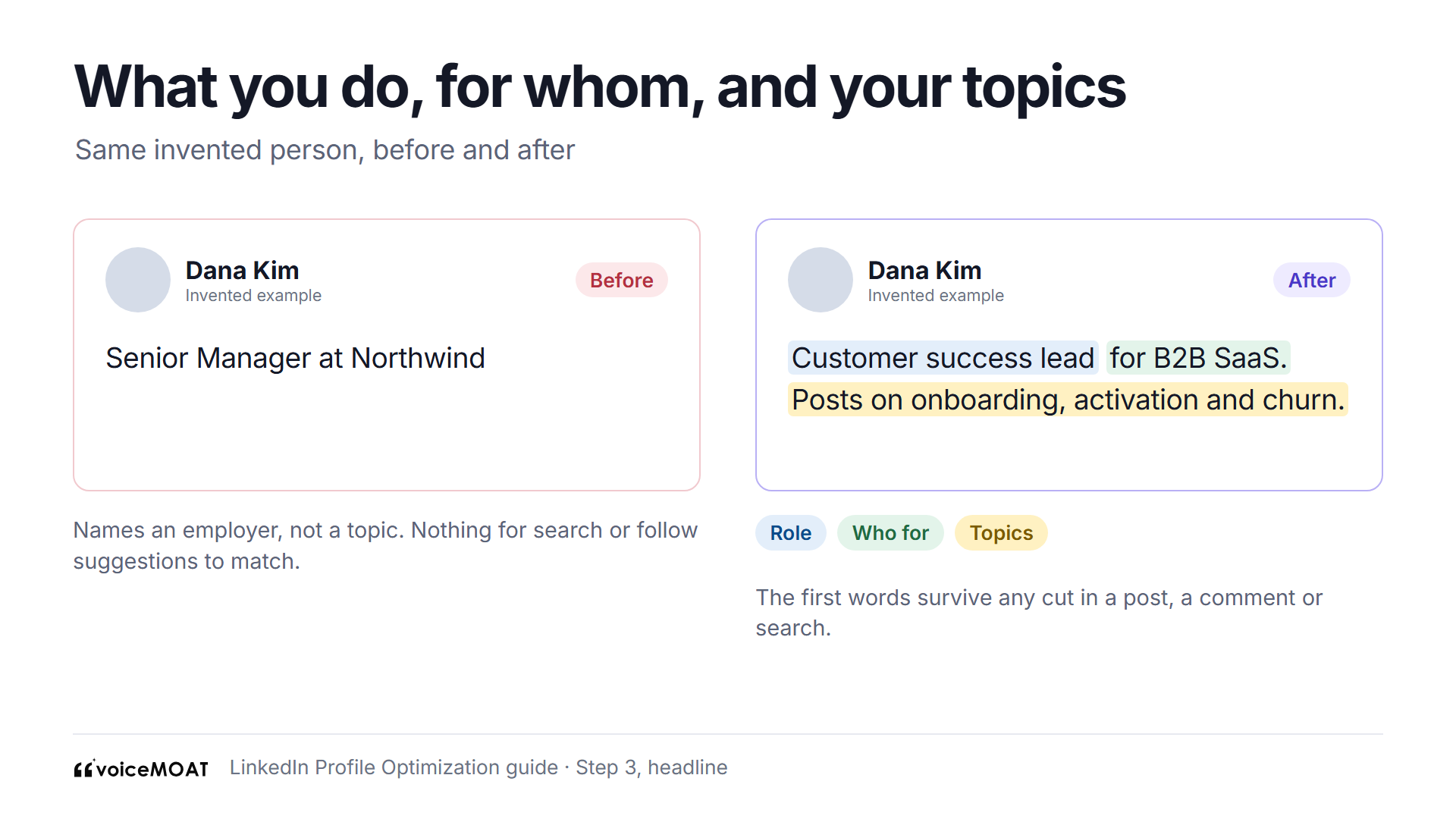
Same person, same job, different first impression. Sample.
LinkedIn's editor allows up to 220 characters. Put the most important words first, because long headlines get shortened in posts, comments and search. This guide keeps the headline short on purpose: for examples by role and goal, see our guide to LinkedIn headline examples. To draft options, try the free headline generator, then score one with the headline analyzer.
4. About section
LinkedIn suggests keeping About to one or two paragraphs. Only the opening lines show before "see more", so they do most of the work.
Line one: who you help and with what. This is your goal sentence from earlier.
Then proof: one result, a number or a named thing you built.
Then your topics: what you post about, using the same words as your posts.
End with one next step: subscribe to a newsletter, read a case study or send a message.
A short invented opening, before and after:
Before: "I am a results-driven professional with over 10 years of experience across a variety of industries."
After: "I help B2B SaaS teams get new users to their first win faster. Last year that meant rebuilding onboarding at a 40-person company and cutting time to first report from nine days to two."
You can also tag up to five top skills at the bottom of About, a feature LinkedIn added in 2023. Pick the five that match your topics. For full templates and examples by goal and career stage, see our guide to LinkedIn About section examples, or draft three versions with the free summary generator.
5. Featured
Featured is the first place a curious visitor can click. LinkedIn lets you feature your own posts and reposts, articles you published on LinkedIn, external links, and uploaded images, documents, presentations and videos.
Pick one goal and feature what serves it.
Keep two or three items. You need at least two before you can reorder them.
Put the strongest item first. Most visitors won't scroll sideways.
Be careful when cleaning up. LinkedIn says a removed item can't be restored.
Refresh it when you publish something better, and check old links still work.
What to feature by goal:
Goal | First item | Second item | Third item |
|---|---|---|---|
Get hired | A project write-up or portfolio link | A post where you explain your work | A certificate or talk |
Win clients | A case study with a result | A post that shows how you think | A booking or contact page |
Build an audience | Your best-performing post | Your newsletter or a carousel | A post that explains what you post about |
Recruit | Your company's careers page | A post about how the team works | A recent launch |

Two or three items, one goal. Sample.
To add an item, open your profile and use the "+" on the Featured section. If you don't see Featured yet, add it from the "Add profile section" button near the top of your profile.
6. Experience
LinkedIn advises keeping experience updated with roles that align with your current goals. It's also where search looks for current and past positions.
Use a standard title, then add context in the description.
Write outcomes, not duties. Two to four bullets per role is enough.
Fill in your current role first. It's the first one a visitor reaches.
Use your topic words in descriptions, where they're true.
Add media to a role when you have it: a deck, a launch post or a demo.
Trim old roles that don't serve your goal to one line. You don't need to delete them.
A simple shape for each bullet: what you did, how, and what changed. An invented role, before and after:
Before | After |
|---|---|
Responsible for onboarding | Rebuilt onboarding for new accounts, which cut support tickets in the first month by a third |
Managed a team of designers | Led a team of four designers through a pricing page redesign that raised trial starts |
Worked on email campaigns | Wrote and tested a five-email welcome series; replies to the founder's email doubled |

Outcomes give a stranger something to believe. Sample.
If you don't have numbers, use a concrete before and after ("moved reporting from a weekly spreadsheet to a live dashboard"). Never invent a figure. A recruiter or buyer who asks about it will find out.
7. Skills
You can list up to 100 skills. If you list none, the Skills section doesn't appear at all. Skills are among the fields follow suggestions read, and LinkedIn calls them one of the most common things recruiters search for.
List the skills that match your topics first, then the rest of your real skills.
Echo your main skills in your headline and About, so all three sections agree.
Attach skills to the roles where you used them, so they're backed by real work.
Remove skills you no longer want to be known for. Old ones crowd out the ones you want.
Prefer the term people search for: "Financial modeling", not "Numbers wizardry".

Top skills should repeat your headline topics. Sample.
8. Recommendations
Recommendations are the only part of your profile written by someone else, which is why visitors trust them more than your own claims. LinkedIn's help page on requesting a recommendation sets the rules:
One request per connection at a time, and no limit on the total you can request or receive.
Only in your primary profile language.
You pick the relationship and their position at the time, and you can't change the relationship after sending. If it's wrong, they have to delete the request and you send a new one.
Where: on desktop, open your profile, scroll to Recommendations, click the "+" and choose "Ask for recommendation". You can also open a connection's profile, click More and choose "Request a recommendation".
How to get good ones:
Ask people who saw your best work up close: a manager, a client, someone you mentored.
Remind them of one specific thing you did together, in the request message.
Ask them to name a result if they can, and to mention the skill you want to be known for.
Offer to write one back, and do it well.
An invented request message: "Hi Sam, I'm updating my profile around onboarding work. Would you be open to writing a short recommendation about the activation project we did last spring? Even two lines on what changed for your team would help. Happy to write one for you too."
If you're writing one for someone else, our free recommendation generator drafts three versions from one thing they did, and has a mode that drafts the request message instead.
9. Education, certifications and other sections
These sections rarely win a follower, but they help search and they answer questions before a visitor asks.
Education: add your schools. LinkedIn's search page says you should be findable by the schools you attended, and alumni often search for each other.
Licenses and certifications: add the ones a buyer or recruiter in your field would look for, with the issuing body named the way people search for it.
Projects, publications and volunteering: add them when they prove a topic you post about. Skip them when they don't.
A second language: if you work in two languages, LinkedIn lets you create a profile in another language on desktop, from the edit icon next to "Profile language". Viewers see the version in the language they use on LinkedIn, or your primary profile if there isn't one. LinkedIn says "translations aren't done for you", so you write each version yourself.
10. Custom URL and contact info
A URL ending in random characters looks unfinished on a CV, an email signature or a slide. LinkedIn's rules:
3 to 100 characters, with no spaces, symbols, special characters or the word LinkedIn.
Change it up to five times in six months. After that you wait six months, so pick well.
Where: your profile, then the edit icon beside "Public profile & URL".
Before (invented) | After (invented) |
|---|---|
linkedin.com/in/dana-kim-8b41a29c | linkedin.com/in/danakim |
linkedin.com/in/dana-kim-marketing-expert-2026 | linkedin.com/in/danakim-growth |
Then check your contact info. Add the one website or booking link that matches your goal, and the email you want people to use. Our free LinkedIn URL shortener page explains what lnkd.in links can and can't do, and the LinkedIn QR code generator turns your new URL into a code for a slide or a name badge.
11. Follow button and creator settings
LinkedIn removed creator mode in 2024. Profile hashtags went in February and the on/off toggle in March. LinkedIn said creators keep "the same sharing tools and analytics", and that Follow became the default button on profiles that had creator mode on.
Many guides still tell you to turn creator mode on. AuthoredUp's checklist, updated in September 2026, still lists it as a setup step, and Supergrow's 11-step guide, dated September 2026, tells readers to "Activate Creator Mode". That setting no longer exists.
What to do instead:
Make Follow primary. Go to Settings & Privacy, then Visibility, then Followers, and turn on "Make follow primary". Strangers can then follow you without sending an invitation. Turn it off if you mainly want connections, for example if your goal is a job search or a small network of buyers.
Put your topics where hashtags used to be: headline, About and skills.
Check the creator dashboard. On 15 October 2026, LinkedIn said a new dashboard would roll out globally in the coming weeks, on mobile under your profile picture.

Two settings most people never touch. Mockup.
12. Open to Work and other signals
If your goal is a new job, the "Open to" button tells recruiters. LinkedIn's help page on Open to Work gives three choices:
Who can see it | What it does | Best for |
|---|---|---|
All LinkedIn members | Includes recruiters and people at your current company, and adds the #OpenToWork photo frame | People who aren't employed, or whose employer knows |
Recruiters only | Shown to people using LinkedIn Recruiter | Quiet searches while employed |
Only you | Tailors your job recommendations | Exploring without telling anyone |

Recruiters only, everyone, or just you. Mockup.
Where: on desktop, click Me, then your profile, then the "Open to" button, then "Finding a new job". Add your preferred roles and locations, then save.
Privacy: LinkedIn tries to hide the status from Recruiter users at your current company, based on the job marked "I am currently working here", but says it "can't guarantee complete privacy".
It can switch itself off. If you stop responding to recruiter InMails, LinkedIn emails you to confirm, and removes the feature if you don't.
If your goal is clients or an audience, leave Open to Work off. The same "Open to" button holds other options, so pick only the ones that match your goal.
How your profile shows on a phone and in the feed
Most people meet your profile in pieces, not as a full page, and many of them are on a phone.
In a feed post: your photo, name and the start of your headline.
In a comment: the same, often cut shorter, because comments are narrower.
In search results: name, headline, location and sometimes a shared connection.
On your profile on a phone: the top card, then a few lines of About before "see more".

The first words carry the most weight everywhere. Cut-off points vary; test yours.
LinkedIn doesn't publish where each place cuts the text, and it changes with screen width, so don't trust any guide that gives one exact number. Test it yourself:
Open your profile on your phone and note where About cuts off.
Find a recent comment you left and read your headline there.
Ask a friend to search your name and send you a screenshot.
Then rewrite until the first few words of your headline and the first line of your About make sense on their own. "Customer success lead for B2B SaaS" survives any cut. "I'm on a mission to transform how the world..." does not.
Set it up for your goal
Here is the part almost no ranking guide covers: the same 12 sections, set up five different ways. Find your goal and copy its column.
Job seeker | Founder | Salesperson | Consultant or freelancer | Creator | |
|---|---|---|---|---|---|
Headline leads with | Target role and 2 to 3 skills | What the company does and for whom | Who you help buy what | The problem you solve and for whom | Your topics |
Banner | Optional, a clean line on your field | Product line and "hiring" if true | Company and the customer you serve | Your offer in one line | Your topics and post schedule |
Featured first | Portfolio or project | Product or launch post | Customer story | Case study | Best post |
Main button | Connect | Follow | Connect | Connect or Follow | Follow |
About ends with | The roles you're open to | How to get in touch or join | How to book a call | How to start working together | Subscribe or follow |
Open to Work | Recruiters only, or all members | Off | Off | Off | Off |

One profile can't serve every goal. Pick one.
Job seeker. Use the exact title you want in your headline, with the skills the job ads ask for. Write each role as outcomes. Ask a former manager for a recommendation before you start applying, since they take time to arrive. Use Open to Work for recruiters only if you're still employed.
Founder. Your profile sells three things at once: the company, the job openings and you. Lead with what the company does, not your title ("Building payroll for 10 to 200 person teams" beats "Founder & CEO"). Feature the product and a launch post. Make Follow primary if you post; candidates and customers will follow before they connect. For more, see our guide to personal branding for founders.
Salesperson. Buyers check you before they reply. Make the headline about the customer ("Helping finance teams close the month faster"), not your quota. Feature a customer story your company has published. Keep Connect as the main button, because your network is your pipeline, and never use tools that send invitations or messages for you.
Consultant or freelancer. Name the problem and the client type, and make the next step obvious: a case study first in Featured, a booking link in contact info, and an About that ends with how to start. Recommendations from clients matter more here than anywhere else.
Creator. Your headline is a promise about your posts, so it should name your topics. Feature your best post and your newsletter. Make Follow primary. Then make sure your posts keep the promise, which is the next section but one.
A full before-and-after profile
One invented person, Dana Kim, a customer success lead who wants to build an audience and win advisory work. Every detail below is invented.
Section | Before | After |
|---|---|---|
Photo | Cropped wedding photo | Recent head-and-shoulders photo, plain wall |
Banner | Default blue | "Onboarding and activation for B2B SaaS. New teardown every Tuesday." |
Headline | Senior Manager at Northwind | Customer success lead for B2B SaaS. Posts on onboarding, activation and churn. |
About, first line | "Results-driven professional with 10+ years of experience." | "I help B2B SaaS teams get new users to their first win faster." |
Featured | Empty | Best onboarding teardown post; a case study link; newsletter |
Experience | Duties for every role | Three outcome bullets for the current role, one line for older roles |
Skills | 48 skills, top three "Microsoft Office", "Leadership", "Teamwork" | Top three "Customer onboarding", "Customer success", "SaaS" |
Recommendations | None | Two, from a former manager and a client |
Custom URL | /in/dana-kim-8b41a29c | /in/danakim |
Main button | Connect | Follow |

The whole page, before and after. Sample person.
Nothing in the after column is clever. It's just consistent: the banner, headline, About, Featured and skills all name the same topic, so a stranger, a searcher and LinkedIn's follow suggestions all reach the same conclusion about who Dana is.
Your profile is the landing page for your posts
Only a couple of the ranking pages connect the profile to what you post, and none of them explains how. Yet if you post at all, most of your profile visitors arrive straight from a post or a comment. They've just read something you wrote, and they click your name to answer one question: "Is there more of this?"
Two things have to match for them to say yes.
1. Topics. If your headline promises onboarding and your last ten posts are about productivity apps, the visitor is confused and leaves. LinkedIn's follow suggestions match by topic, so the mismatch may cost you there too. A quick check:
Check | How to do it | What good looks like |
|---|---|---|
Topic match | List the topics in your headline, then tag your last 10 posts by topic | At least 7 of 10 posts fit a profile topic |
Orphan topics | Look for profile topics no post mentions | None, or you start posting on it |
Hidden topics | Look for post topics the profile never mentions | Add them to the profile if they're working |
Featured proof | Is your best recent post in Featured? | Yes, and it's on a profile topic |
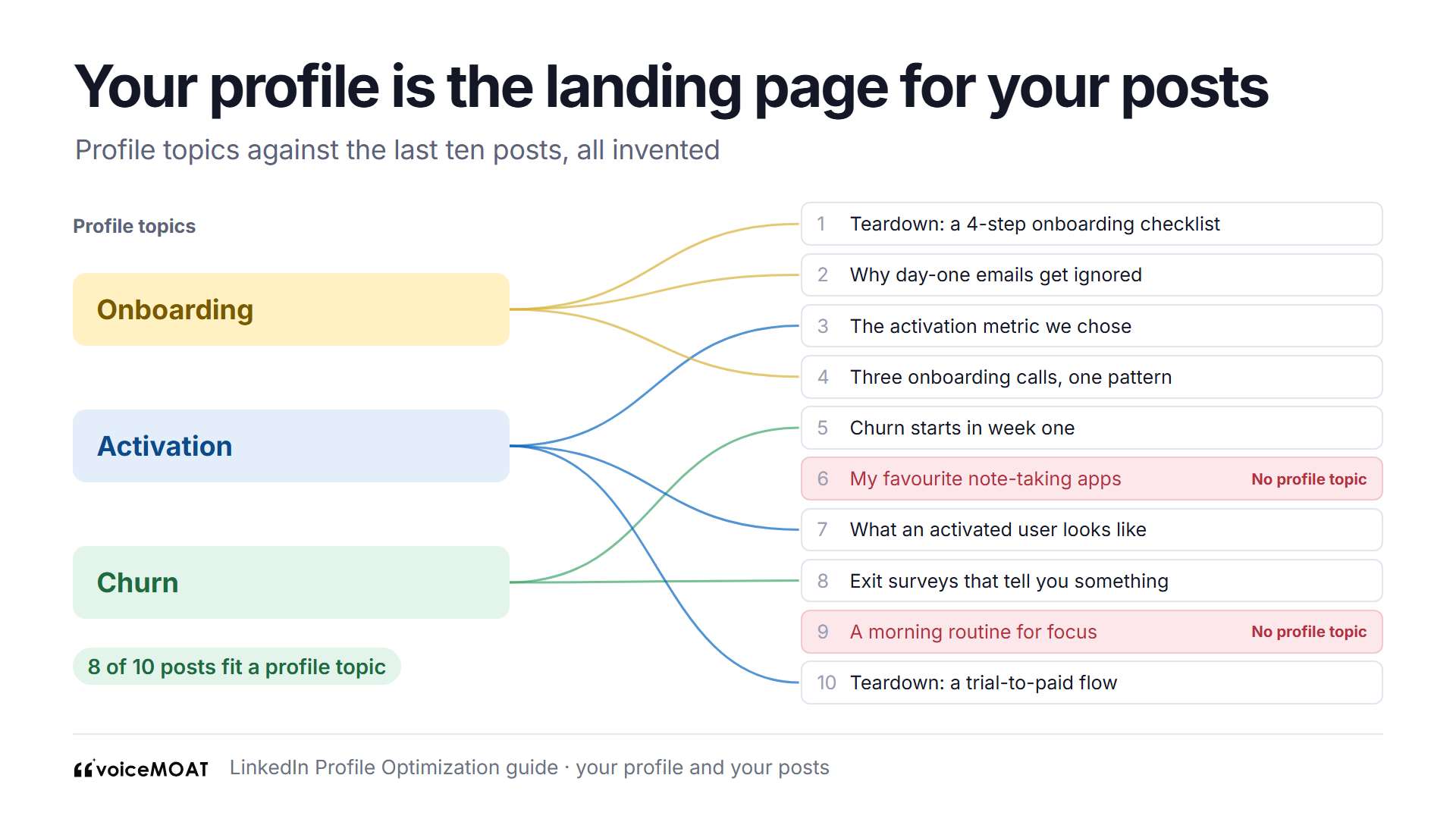
If your profile promises a topic, your posts should show it.
2. Voice. This is the part nobody writes about. Voice is how you come across: short or long sentences, plain or technical words, warm or blunt, stories or data. If your posts are direct and funny and your About reads like a formal cover letter, the visitor meets two different people. That gap costs trust, and it often appears when a profile is written in one sitting, sometimes with AI, while the posts are written week by week.
Make them match:
Read your About right after your three best posts. Does it read like the same person wrote them? If not, rewrite the About in the style of the posts, not the other way round. The posts are the real you.
Use the same words. If your posts say "onboarding", your headline shouldn't say "customer enablement journeys".
Keep the person consistent. If you post in the first person, write About in the first person.
Post on your profile topics consistently. A profile is a promise. A month of silence or a month off-topic breaks it. Our guide on how to grow on LinkedIn covers the posting side.
If you want a second opinion, our free brand voice analyzer has a match mode: paste a few of your posts as the sample and your About as the draft, and it shows how close the two are, signal by signal. It needs no sign-up.
How to check and measure it
The 5-minute check
Read your profile top to bottom as a stranger who just saw one of your posts.
Do the headline, About and skills name the same topics?
Would a stranger know in one sentence what you post about or what you do?
Does the first line of About make sense before "see more"?
Is there one obvious next click, in Featured or at the end of About?
Does the main button (Follow or Connect) match your goal?
Is anything out of date: a past job still marked current, a dead link, old skills at the top?
LinkedIn's own profile strength meter covers completeness. For a score with every point shown, paste your profile into our free LinkedIn profile analyzer. It runs 11 checks and nothing logs in to LinkedIn. Want the same checks with jokes? Try the profile roast.
Measure it over four weeks
A profile change is an experiment, so take a baseline first. LinkedIn gives every member two numbers in the Analytics section of the profile.
Profile views. Who's viewed your profile is reached from the profile views link in Analytics. LinkedIn says full viewer insights are for Premium subscribers, and you'll see no visitor data if nobody viewed you in the past 90 days.
Search appearances. LinkedIn's search appearances page says it counts how often your profile appeared in search results and shows aggregated details about the searchers, such as their top companies and job titles, not their names. The data updates weekly on Wednesdays.
A simple routine:
Week 0: write down profile views, search appearances and followers before you change anything.
Make the changes in one go, so you're comparing one profile with another.
Weeks 1 to 4: note the same three numbers every Wednesday, after search appearances update.
Look at who, not just how many. If the searchers' job titles start to look like your target audience, the keywords are working.
Change one thing at a time after that, such as the headline, and give it two weeks.
Keep posting at your normal pace during the test. If you double your posting the same week you change your headline, you won't know which one moved the numbers. For reading the post side, see our guide on how to read LinkedIn post analytics.
Using ChatGPT or Claude to optimize your profile
A lot of people now search for profile prompts and Claude skills. AI is fine for drafting, with three rules.
Give it your material, not a blank request: your current profile, three of your best posts, your real results and your goal sentence.
Check every claim. A model will happily invent a number or a title. Delete anything you didn't do.
Ask it to match your posts, not a template. Otherwise you get the same polished paragraph as everyone else, which gives visitors and LinkedIn nothing to place you by.
A prompt you can adapt:
Here is my LinkedIn profile, three of my posts and my goal. Goal: [one sentence]. Topics: [two or three]. Rewrite my headline in three versions under 220 characters, leading with the words my audience would search for. Then rewrite the first two lines of my About so they work before "see more". Match the sentence length and word choice in my posts. Use only facts I've given you, and list anything you were unsure about.
Our free Claude skill Fix my LinkedIn profile reviews a profile in the order a visitor reads it and drafts a fix for the weakest part. It works in Claude and ChatGPT with no account. For more copy-paste prompts, see ChatGPT prompts for your LinkedIn profile, and our 12 signs of an AI-written post work as a checklist for profile text too.
Mistakes that undo the work, and the fixes
Mistake | Why it hurts | Fix |
|---|---|---|
A headline that only names your employer | Gives searchers and follow suggestions no topic | Add what you do, for whom and your topics |
A creative job title with no standard one | People search for standard titles | Standard title first, your own name for it after |
Keyword stuffing in About or skills | LinkedIn warns it may trigger spam detection | Main keyword in headline, title and top skills, used naturally once or twice in About |
An About written for a recruiter when you want followers, or the other way round | The visitor can't tell what to do next | Pick one goal and end About with its next step |
Topics in the profile that your posts never mention | Visitors notice the mismatch | Post on the topic or remove it |
An About in a different voice from your posts | Two different people on one page | Rewrite About in the style of your best posts |
Ten Featured items | Nobody knows where to click | Two or three, best first |
50 skills with the wrong three on top | Old skills crowd out the ones you want | Reorder so your topic skills lead |
Following outdated advice | Creator mode and profile hashtags no longer exist | Make Follow primary and move topics into headline, About and skills |
Changing the custom URL repeatedly | Five changes in six months, then a six-month wait | Pick your plain name once |
Paying for automation that sends invitations or comments | LinkedIn said in March 2026 that pods and automated comments aren't allowed, and warned of restrictions | Do outreach and comments yourself |
Editing once and never again | Jobs, results and topics change | Recheck every three months, or whenever your goal changes |
A strong profile converts visitors. Getting them there is the job of your posts.
How VoiceMoat helps
VoiceMoat is an AI social media tool for LinkedIn and Twitter. audenAI, the brain inside VoiceMoat, does the work and you decide what goes out.
Free tools, no account: the profile analyzer, headline generator, headline analyzer, summary generator, recommendation generator, banner maker, photo editor and QR code generator above. The AI tools share 3 free runs a day.
Headlines in Grow: on Creator, Pro and Enterprise, Grow drafts three LinkedIn headlines from the answers in your Grow brief, each with a line on why. You copy one and paste it into LinkedIn. It costs 1 credit.
Posts that match the profile: Studio drafts LinkedIn posts from your own posts and ideas, so the topics in your headline show up in your feed, in the same voice as the rest of your posts.
In Claude or ChatGPT: with VoiceMoat connected, the free profile skill can read your voice profile and the topics you actually post about, and check a rewritten About against your style.
What it can't do:
It can't edit your LinkedIn profile. LinkedIn's API doesn't let us change profiles, so every headline or About is something you paste in yourself.
It can't score your live profile. The analyzer reads only what you paste.
It can't read your profile views or search appearances. Those stay in LinkedIn's Analytics section.
It can't promise reach. LinkedIn doesn't publish how much any profile field weighs.
Free | $1 trial | $5 trial | Creator | Pro | Enterprise | |
|---|---|---|---|---|---|---|
Price | $0 | $1 for 3 days | $5 for 3 days | $35 a month | $69 a month | $150 a month |
Credits | 10 a day | 100 in total | 250 in total | 150 a day | 250 a day | 400 a day |
Headline drafts in Grow | No | No | No | Yes | Yes | Yes |
Connect to Claude or ChatGPT | No | No | Yes | No | Yes | Yes |
If you want posts that back up your new profile, try VoiceMoat: Creator is $1 for 3 days.
Frequently asked questions
What is LinkedIn profile optimization?
It's editing each section of your profile so it clearly says what you do, who it's for and what you post about, which helps visitors, searchers and LinkedIn's systems place you.
How do I optimize my LinkedIn profile step by step?
Pick one goal and three topics, then work top down: photo, banner, headline, About, Featured, experience, skills, recommendations, other sections, custom URL, Follow settings and Open to Work, and read it once as a stranger.
How long does it take to optimize a LinkedIn profile?
An afternoon for a first full pass, and about 15 minutes every three months to keep it current.
Does LinkedIn creator mode still exist?
No. LinkedIn removed profile hashtags in February 2024 and the toggle in March 2024; turn on "Make follow primary" instead if you want followers.
How do I optimize my LinkedIn profile for recruiters?
Use your target job title and its skills in your headline, standard titles and outcomes in each role, relevant skills at the top, and Open to Work set to recruiters only if you're employed.
What keywords should I put in my LinkedIn profile?
The job titles and skills your audience searches for, placed in your headline, current title and top skills, without stuffing, which LinkedIn says can trip spam detection.
Should I turn on Open to Work?
Yes if you're job hunting, using "recruiters only" if your employer doesn't know, since LinkedIn says it can't guarantee complete privacy.
Can I use ChatGPT or Claude to optimize my LinkedIn profile?
Yes, for drafts: give it your real profile, posts and results, ask it to match your posts, then remove anything it invented.
How often can I change my LinkedIn custom URL?
Up to five times in six months, then you wait six months before changing it again.
Does my profile affect who sees my posts?
LinkedIn says its follow suggestions use headline, title and skills to match creators by topic, but it hasn't published how much each field weighs.
AI disclosure
This article was drafted with AI assistance and edited by Prateek Singh. LinkedIn's help and engineering pages were read on the source pages on 11 November 2026. VoiceMoat is our product.
Keep reading

Growth
How to Grow on LinkedIn in 2026: 7 Steps and a 90-Day Plan
How to grow on LinkedIn in 2026: make your profile name your topics, post 2 to 5 times a week, use comments as a second feed, and track the numbers that show growth, with a 90-day plan.
10 min read
·

Brand
Personal Branding for Founders in 2026: What to Post, Where, and How Often
What founders should post, which network to start on, how often to post on LinkedIn and Twitter, and how much time it takes each week, using only numbers we could trace, including RevBoss's 2026 benchmark of 1,202 LinkedIn posts.
10 min read
·

AI and Voice
ChatGPT Twitter Bio and LinkedIn Profile Prompts (2026)
Working ChatGPT, Claude, and Gemini prompts for your Twitter bio, LinkedIn headline, and About section, plus the one fix that stops them sounding generic: training the AI on how you actually write.
19 min read
·

AI and Voice
Best AI tools for LinkedIn personal branding in 2026
The LinkedIn feed is filling with AI posts that read the same, which is why a recognizable voice now stands out. This guide compares the best AI tools for LinkedIn personal branding in 2026, including Kleo, Oiti and ContentIn, by the job each one does. Prices were checked on 21 October 2026, and VoiceMoat is placed by what it does, with its limits named.
17 min read
·
From the Twitter algorithm series
The Twitter/X algorithm in May 2026: why voice wins under the new transformer
Read ›